













NetBird is a VPN app that allows you to connect your Windows PC to a NetBird infrastructure through encrypted tunnels based on WireGuard. With it, you can connect to other devices on your network, as well as internal servers or services, either through NetBird Cloud or a self-hosted server that you manage on your own.
First connection and device access
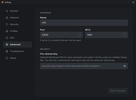
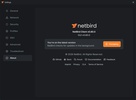
Upon starting, a welcome dialog will direct you to the NetBird icon in the system tray and ask whether you want to use NetBird Cloud or a self-hosted deployment, in which case you will have to enter the management URL before connecting. By pressing the main button, the program will open the browser and authorize the computer with your organization's SSO provider, or you can use an access key, which is helpful when deploying multiple computers at once. Once authorized, the device will be registered as a peer within the network, and the assigned NetBird IP address will be displayed.
Taskbar shortcut
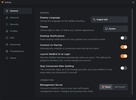
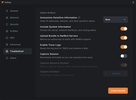
In the taskbar, you'll see a NetBird icon from which you can manage this program without having to open the full thing. From there, you can connect and disconnect, switch profiles, renew the session (since the connections expire each day), select the exit node, and access the settings or help.
Network views, peers, and exit nodes
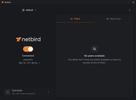
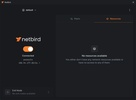
The window offers a compact view by default and an advanced one that displays the peers and network resources. You can browse through the available devices, open each peer's details to check its status, address, routes, and connection metadata, and consult the resources section to quickly locate what's accessible on the network. The exit node selector allows you to route your traffic through another device when your configuration supports it, or return to a direct connection by unselecting it.
My experience with NetBird
I left the default server during the initial setup and pressed the main connection button, which opened the browser for me to complete the login via SSO. Once the computer was authorized, I went into the peer details to check the address and the available routes within the network, and verified that the colored dot in the tray reflected my status at all times. I found it convenient to be able to leave it running from the tray and choose which management server to connect through in each case.
What I liked most about NetBird and what could be improved
· What I liked the most: that the system tray included the status, profile switching, and exit node selection.
· What I would improve: I would add more controls to automate the connection and manage complex profiles directly from the client without relying so much on the administration panel.
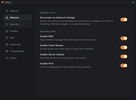
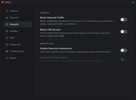
Download NetBird for Windows to connect your device to NetBird's private networks over WireGuard, including system tray management, peer and resource views, standalone profiles, and routing, DNS, and IPv6 controls.
NetBird is for you if
✓ You need secure, encrypted access to internal servers and devices via NetBird’s WireGuard-based VPN
✓ You value quick tray controls to connect, switch profiles, renew sessions, and choose exit nodes
✓ You prioritize clear visibility of peers, routes, and resources with advanced DNS and IPv6 management























Comments
There are no opinions about NetBird yet. Be the first! Comment